 Menda
Menda
macOS · Mac · Everyday how-tos
Sign a PDF in Preview without printing it
No printer, no scanner, no app to install. Preview captures your signature once and drops it into any PDF you are sent.
- DifficultyEasy
- Time10 min
- RiskLow
- ReversibleYes
- PlatformmacOS
- Updated
What that means
Low risk. This fix only checks things, or changes settings you can switch back in the same place. This change is reversible — you can return to the previous state without professional help or data loss.
Steps
-
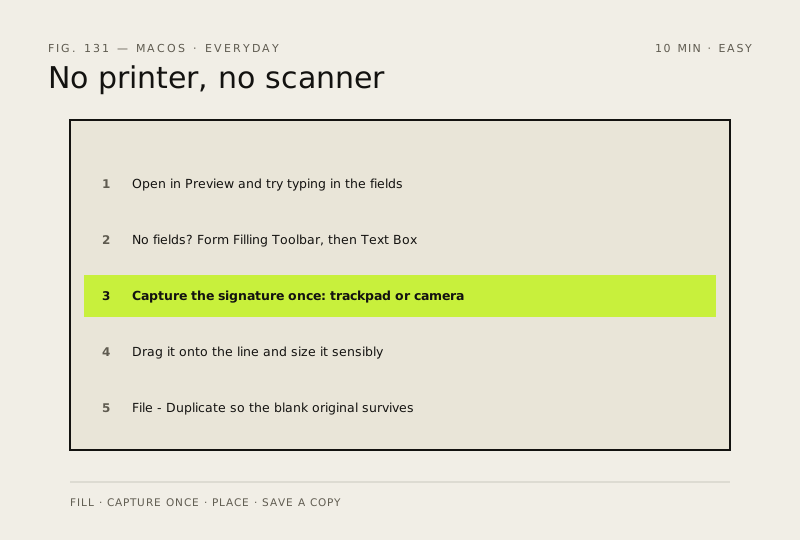
Open the PDF in Preview and try typing first
You should see: Your text appearing inside the form's own boxes.
-
If the form will not take typing, add text boxes
Some PDFs are pictures of forms rather than forms
You should see: Your own text boxes sitting where the form's fields would have been.
Why?
A scanned form is the common case here. It is not broken and you are not missing a setting — it simply has no fields to click into.
-
Capture your signature once
Preview stores it, so this is a one-off job
You should see: Your signature saved and offered in the signature menu from now on.
Why?
Apple notes that on a Mac with a Force Touch trackpad, pressing more firmly gives a heavier, darker line — useful if your first attempt looks thin.
-
Place it and size it
You should see: Your signature sitting on the line at a believable size.
-
Save a copy, not the original
You should see: Two files: the blank form you were sent and your signed copy.
Careful: A captured signature lives on your Mac and can be dropped onto any document by anyone using your account. Keep the Mac locked when you step away, and keep FileVault on.
Also see: Turn on FileVault full-disk encryption · Hot Corners: put your screen corners to work
How to check it worked
The finished PDF opens with your signature in place and the form fields filled, on any device, without needing Preview.
If it didn't work
You cannot type into the fields: the PDF was never made as a fillable form, so use a text box instead. If the signature looks heavy or ragged, capture it again — trackpad signatures take two or three attempts to get right.
Next stop: the related fixes below, or start a guided diagnosis.