 Menda
Menda
macOS · Mac · Everyday how-tos
Live Text: copy text out of a photo or screenshot
A serial number in a photo, an address on a screenshot, a Wi-Fi password on a router label — Live Text reads them so you can copy the text.
- DifficultyEasy
- Time2 min
- RiskLow
- ReversibleYes
- PlatformmacOS
- Updated
What that means
Low risk. This fix only checks things, or changes settings you can switch back in the same place. This change is reversible — you can return to the previous state without professional help or data loss.
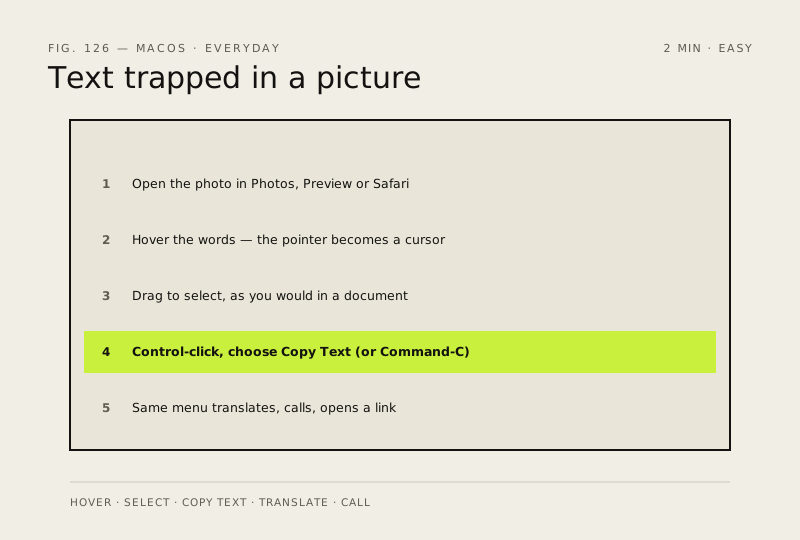
Steps
-
Open the picture anywhere that shows it full size
Photos, Preview and Safari all support this
You should see: The picture on screen at a readable size.
-
Hover the words, then select them
You should see: Words in the picture highlighted as a selection, not the whole image.
Why?
If the pointer never changes, the Mac has not found text there. That is usually resolution or handwriting, not a setting you can switch on.
-
Copy it
You should see: The text pasted as real, editable text in your document.
Also see: Universal Clipboard: copy on one device, paste on another
-
Use the other things it offers
The same Control-click menu does more than copy
Why?
Apple notes translation is not available in every language, and may not be available in some countries or regions.
-
Know when it will not help
Live Text reads printed, reasonably sharp text — it is not a handwriting recognition tool
Careful: Check anything you copy from a photo before you rely on it. A misread digit in a serial number or an account number looks exactly like a correct one.
How to check it worked
Hovering text in a picture changes the pointer to a text cursor, and you can select the words and copy them like any other text.
If it didn't work
The text will not select: the picture is too low-resolution, the writing is heavily stylised or handwritten, or the language is not one Live Text reads. Nothing is wrong with your Mac — crop tighter and try again, or retype it.
Next stop: the related fixes below, or start a guided diagnosis.