 Menda
Menda
macOS · Mac · Security & backups
Set up Time Machine properly
Time Machine is the closest thing macOS has to 'undo' for your whole computer. Twenty minutes now saves a disaster later.
- DifficultyEasy
- Time20 min + overnight first backup
- RiskLow
- ReversibleYes
- PlatformmacOS
- Updated
What that means
Low risk. This fix only checks things, or changes settings you can switch back in the same place. This change is reversible — you can return to the previous state without professional help or data loss.
What usually goes wrong
- Time Machine may ask to erase the disk you give it — it always does if the disk is formatted for Windows. If it asks, everything already on the drive is permanently deleted, so start with an empty one or copy its contents off first.
- Size the drive at two to three times your data — Time Machine keeps versions, so a barely-bigger disk fills in weeks and quietly discards your oldest history.
- One backup drive rebuilds the single point of failure you were trying to remove. Time Machine happily rotates between multiple disks — use two, and keep one elsewhere.
- Backups stop silently when the drive is unplugged — if it's portable, glance at the Time Machine menu now and then for the last-backup date.
Steps
-
Connect a dedicated backup drive
Careful: Time Machine may ask to erase this drive (it always does when the drive is formatted for Windows). If it asks, everything on it is permanently deleted — use an empty drive, or copy its contents off first.
-
Add the drive to Time Machine
Why?
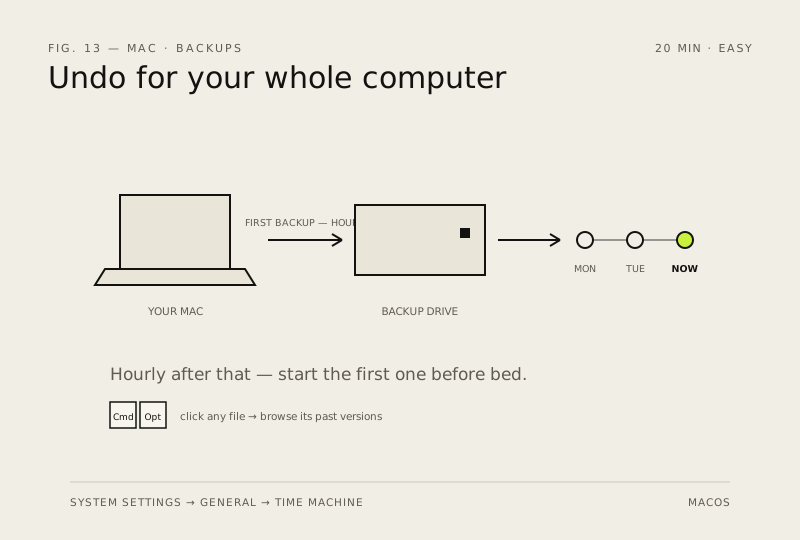
The 20 minutes above is your time; the first full backup itself can take hours on a large drive — start it before bed.
-
Let it build your version history
After the first backup, Time Machine runs automatically about every hour
You should see: The backup browser opens with your folders — pick an old version and Restore. The menu-bar icon shows the date of the last successful backup.
-
Test a restore while nothing is wrong
You should see: If a file with the same name already exists, macOS asks whether to keep the original, keep both or replace — for a test choose 'Keep Both', check the restored copy, then throw it away
Why?
A backup you've never restored is a rumour; testing one file now tells you whether the whole thing will work on the morning it matters.
How to verify the fix
The first full backup completes, hourly backups run automatically, and you've successfully restored one test folder.
If this didn't fix it
A restore attempt fails or the backup never finishes — check the drive's connection/format (APFS) before trusting Time Machine.
Next stop: the related fixes below, or start a guided diagnosis.