 Menda
Menda
macOS · Mac · Everyday how-tos
Hot Corners: put your screen corners to work
Hot Corners turn a shove of the pointer into an action: lock the screen, show the desktop or start a note. Four gestures, no shortcut to learn.
- DifficultyEasy
- Time3 min
- RiskLow
- ReversibleYes
- PlatformmacOS
- Updated
What that means
Low risk. This fix only checks things, or changes settings you can switch back in the same place. This change is reversible — you can return to the previous state without professional help or data loss.
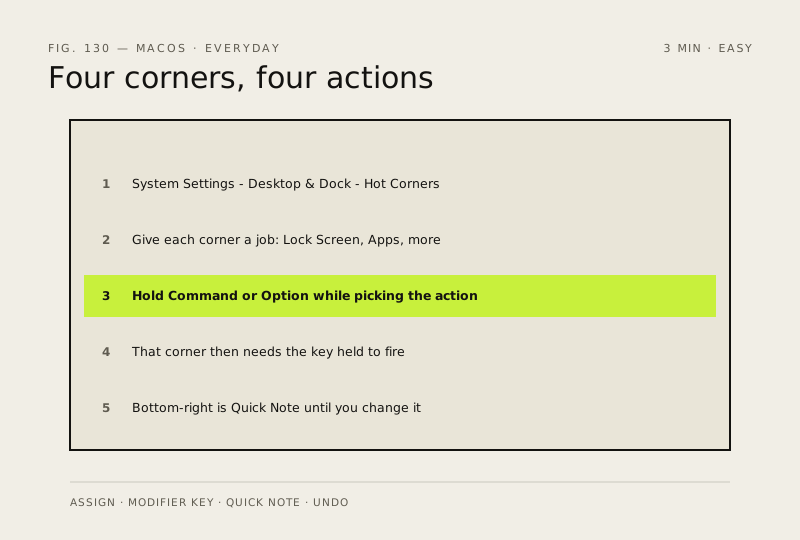
Steps
-
Open Hot Corners
It is tucked inside the desktop settings
Ventura or later
Monterey or earlier
You should see: A small panel with a pop-up menu for each of the four corners.
-
Give each corner a job
You should see: Each corner's menu showing the action you picked.
Also see: Turn on FileVault full-disk encryption
-
Stop a corner firing by accident
Why?
This is the fix for the classic complaint that the screen keeps locking while you reach for the menu bar. Do not abandon hot corners over it — add a modifier.
-
Know about the corner that is already set
Apple notes that by default the bottom-right hot corner is set to Quick Note
You should see: The bottom-right menu showing Quick Note until you change it.
-
Undo anything that annoys you
You should see: A corner with no action set, behaving like an ordinary corner.
How to check it worked
Pushing the pointer into the corner you configured does the thing you chose, every time, without clicking.
If it didn't work
A corner does nothing: it is set to the dash (no action), or another app has claimed that corner. A corner firing when you do not want it is the usual complaint — set a modifier key or switch that corner off.
Next stop: the related fixes below, or start a guided diagnosis.