 Menda
Menda
Win 10 / 11 · Windows
PC won't wake from sleep on Windows? Get the screen back
A PC that won't wake from sleep — black screen, keyboard ignored — is usually running underneath with the display driver stuck. Wake it without the power button, then ask Windows which sleep it uses and what is interfering.
- DifficultyMedium
- Time15 min
- RiskLow
- ReversibleYes
- PlatformWin 10 / 11
- Updated
What that means
Low risk. This fix only checks things, or changes settings you can switch back in the same place. This change is reversible — you can return to the previous state without professional help or data loss.
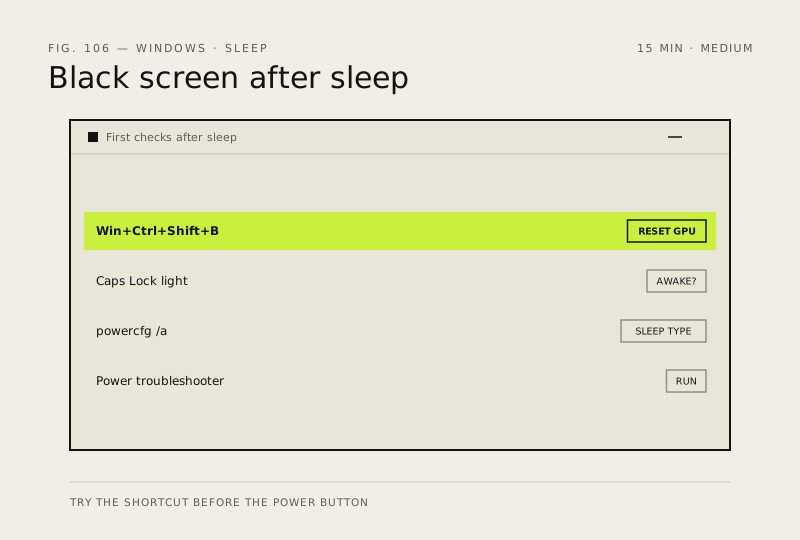
What usually goes wrong
- Turning off Fast Startup doesn't fix sleep. Microsoft describes Fast Startup as a hybrid shutdown, so it changes how the PC shuts down and starts, not how it sleeps — and Microsoft doesn't recommend disabling it.
- Holding the power button risks whatever was open, so try the graphics-driver shortcut and Caps Lock check first.
Steps
-
Wake it without the power button
You should see: A beep or a brief flicker after the shortcut — Microsoft's sign that the reset worked.
Why?
Microsoft's last resort is holding the power button for 20 seconds. It works, but anything unsaved is lost, so try everything above first.
-
Tell 'still asleep' from 'awake with no picture'
-
Ask Windows which sleep it uses and what woke it
Why?
The sleep type it reports — Standby (S3), or Standby (S0 Low Power Idle) on PCs that use Modern Standby — is what to search for on your PC maker's support site.
-
Run the Power troubleshooter, then update drivers
-
If it keeps happening, use hibernate instead of sleep
Why?
Hibernate saves your session to disk and powers off, so it skips the sleep state that's failing — slower to resume, but it comes back.
How to verify the fix
The PC wakes to a working desktop three times in a row, including once after an hour left idle.
If this didn't fix it
If the screen returns but the network does not, that is a different fault — see the sleep-glitch fix. If nothing wakes it and the fans and lights stay off, it lost power or shut down rather than slept: treat it as a PC that won't turn on.
Next stop: the related fixes below, or start a guided diagnosis.