 Menda
Menda
Any · Maintenance
Check for driver updates (in the right order)
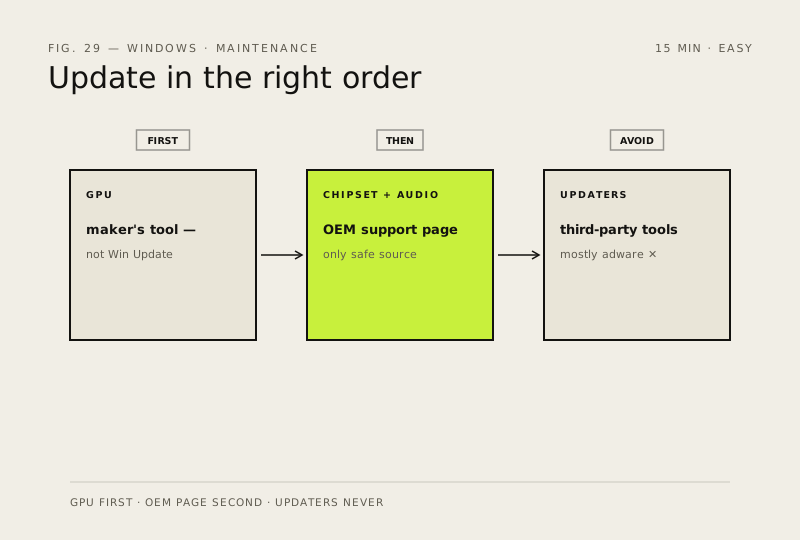
Stale or wrong drivers cause crashes, audio glitches, and odd lag. Update the GPU first — it's the one that matters most.
- DifficultyEasy
- Time15 min
- RiskMedium
- ReversibleYes
- PlatformAny
- Updated
What that means
Medium risk. This fix changes system settings, services, drivers, startup items or security features — reversible, but taking it back takes some effort or knowledge, and it may temporarily affect stability. This change is reversible — you can return to the previous state without professional help or data loss.
What usually goes wrong
- Newer isn't automatically better. If the machine is stable, leave the driver alone — GPU releases routinely fix one thing and break another.
- NVIDIA offers Game Ready and Studio drivers. Studio is the steadier choice unless you're chasing performance on a game that launched this week.
- After a big Windows feature update, check your GPU driver version again. Windows sometimes reinstalls its own older copy over yours, and the glitch you fixed comes back.
- Set a restore point before chipset drivers. They touch storage and power management, which is the category most likely to leave you unable to boot.
Steps
How to verify the fix
Crashes, audio glitches and odd lag stop after the GPU + chipset updates, and Device Manager shows no yellow warnings.
If this didn't fix it
Problems continue or new glitches appear — roll back the most recent driver update on the affected device.
Next stop: the related fixes below, or start a guided diagnosis.