 Menda
Menda
Win 10 / 11 · Windows
Screen flickering on Windows: driver, cable or refresh rate
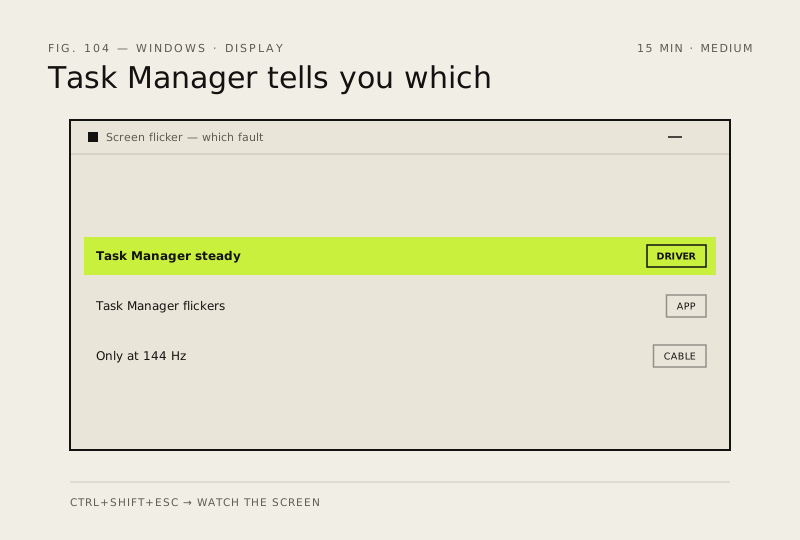
A flickering Windows screen is one of three things, and Task Manager tells you which in about ten seconds — an app, the display driver, or the cable and refresh rate.
- DifficultyMedium
- Time15 min
- RiskMedium
- ReversibleYes
- PlatformWin 10 / 11
- Updated
What that means
Medium risk. This fix changes system settings, services, drivers, startup items or security features — reversible, but taking it back takes some effort or knowledge, and it may temporarily affect stability. This change is reversible — you can return to the previous state without professional help or data loss.
What usually goes wrong
- Roll back before updating, because a driver update that caused the flickering will not be fixed by installing it again.
- A cable that is fine at 60 Hz can flicker at 144 Hz, so test the rate before deciding the monitor is failing.
Steps
How to verify the fix
The screen holds steady through a full session including video playback and dragging windows around.
If this didn't fix it
If it flickers in BIOS or before Windows loads, the fault is hardware — cable, monitor or GPU. If it only flickers on battery, check adaptive brightness in the power plan.
Next stop: the related fixes below, or start a guided diagnosis.