 Menda
Menda
Win 10 / 11 · Maintenance
Fix a blue screen (BSOD) without panicking
A blue screen looks dramatic but it's usually Windows protecting itself from a bad driver or a flaky stick of RAM. The stop code tells you which.
- DifficultyMedium
- Time30 min
- RiskMedium
- ReversibleYes
- PlatformWin 10 / 11
- Updated
What that means
Medium risk. This fix changes system settings, services, drivers, startup items or security features — reversible, but taking it back takes some effort or knowledge, and it may temporarily affect stability. This change is reversible — you can return to the previous state without professional help or data loss.
What usually goes wrong
- Turn off automatic restart first or the screen vanishes before you can read it: System Properties → Advanced → Startup and Recovery → uncheck 'Automatically restart'.
- When the stop code is vague, the crash dump isn't. Minidumps land in C:\Windows\Minidump, and a free reader like BlueScreenView names the offending driver in seconds — no debugger to install.
- Blue screens that only arrive under load — gaming, rendering, long file copies — point at heat or the power supply rather than a driver. Check temperatures before you start rolling drivers back.
- If Windows won't stay up long enough to change anything, do the rollback from Safe Mode instead of fighting the desktop. Before you boot into Safe Mode: on Windows 11 24H2 your PIN may not work there, so make sure you know your account password first.
Steps
How to verify the fix
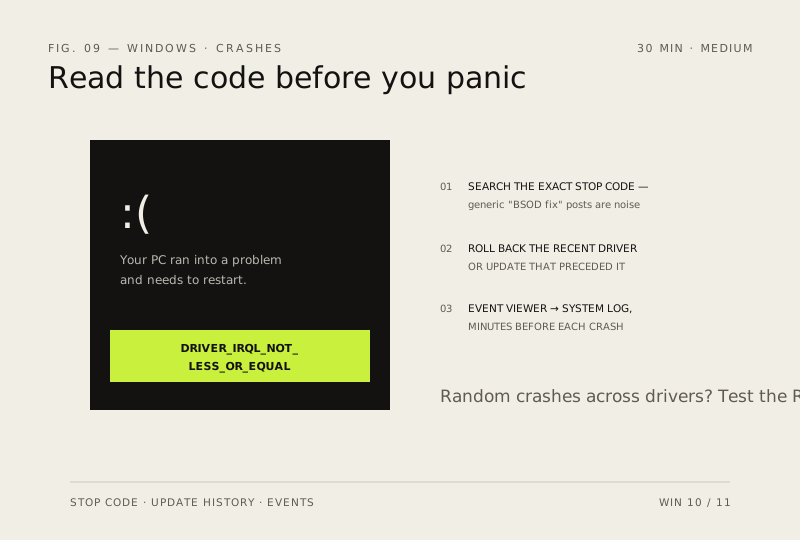
No new BSODs after the rollback/driver change, and Event Viewer shows no red errors in the minutes before past crashes.
If this didn't fix it
BSODs continue with different stop codes — bad RAM is likely; run Windows Memory Diagnostic and test sticks one at a time.
Next stop: the related fixes below, or start a guided diagnosis.