 Menda
Menda
Win 10 / 11 · Speed
CPU at 100% on Windows? Find the culprit in Task Manager
CPU at 100% on Windows is either normal work — a scan, an update, a video export — or one process stuck working flat out. Task Manager tells you which in a minute, and what to do depends on the name at the top.
- DifficultyEasy
- Time10 min
- RiskLow
- ReversibleYes
- PlatformWin 10 / 11
- Updated
What that means
Low risk. This fix only checks things, or changes settings you can switch back in the same place. This change is reversible — you can return to the previous state without professional help or data loss.
Steps
-
Read the CPU graph before blaming anything
Why?
A slow PC with the CPU graph low isn't a CPU problem — check disk and memory instead, using the slow-PC order of attack.
Also see: Fix 'My PC is slow all of a sudden' — the order of attack
-
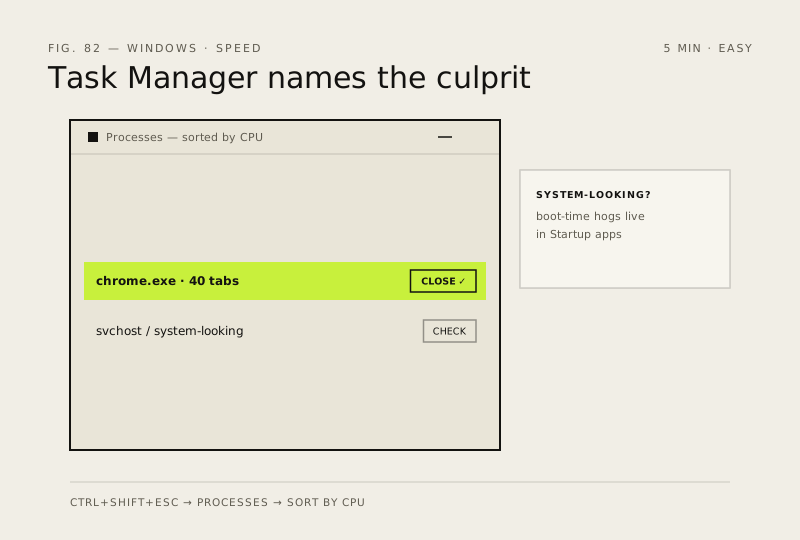
Name the process at the top
Why?
Each 'Service Host:' line is one Windows service — on PCs with more than 3.5 GB of RAM Windows runs most services in their own svchost.exe, so the name tells you which. A green leaf in the Status column means efficiency mode: Windows 11 is already throttling it.
-
Know which names are normal
Why?
Defender scans and Windows Update often use a lot of CPU for a while and settle on their own. If it lasts hours, carry on with the next steps.
Also see: Browser slow or crashing on Windows: reset Chrome and Edge
-
Deal with the culprit
Careful: Don't end processes you can't identify, especially Windows ones — ending the wrong one can close your desktop or drop your network until you restart.
Why?
Microsoft notes efficiency mode can make some processes unstable — if an app misbehaves, turn it off again the same way.
Also see: Disable startup bloat
-
If no single app explains it
How to verify the fix
With the culprit closed, updated or throttled, the CPU graph on Task Manager's Performance tab sits low while you're idle and only climbs when you start something.
If this didn't fix it
CPU stays high after a restart and a clean quick scan, with no process you can name at the top — stop ending processes. Install driver updates and run a full scan, then work through the slow-PC order of attack.
Next stop: the related fixes below, or start a guided diagnosis.