 Menda
Menda
Win 10 / 11 · Speed
Hunt down memory hogs
Full RAM is the quiet cause of most 'sluggish' complaints. Find what's eating it and put a ceiling on it.
- DifficultyMedium
- Time10 min
- RiskMedium
- ReversibleYes
- PlatformWin 10 / 11
- Updated
What that means
Medium risk. This fix changes system settings, services, drivers, startup items or security features — reversible, but taking it back takes some effort or knowledge, and it may temporarily affect stability. This change is reversible — you can return to the previous state without professional help or data loss.
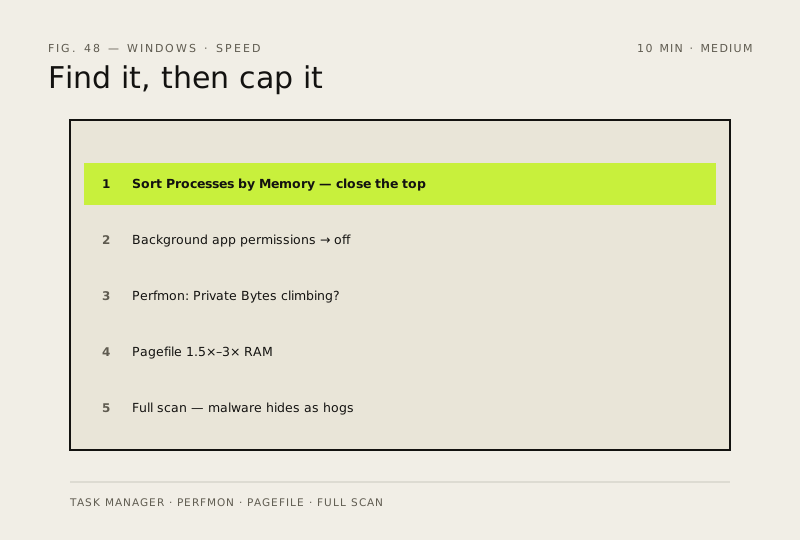
What usually goes wrong
- Don't shrink or disable the paging file to reclaim space. Set it too small and Windows can't write a crash dump, so the next blue screen tells you nothing at all. Leave it system-managed unless you have a specific reason not to.
- High memory use is not by itself a fault. Windows deliberately fills spare RAM with cache and hands it back on demand — the numbers worth watching are committed memory and hard faults, not the percentage.
- End Task on something you don't recognise can take the desktop or the network down with it. Search the process name before you kill anything running as SYSTEM.
- A leak that only surfaces after days of uptime won't show up in a ten-minute look. Leave Performance Monitor logging overnight and read it in the morning.
Steps
How to verify the fix
Memory usage stays below the ceiling you set, and no process's private bytes climb forever in Performance Monitor.
If this didn't fix it
RAM pressure returns within days — the leak is back or another app is hogging memory; re-run the scan.
Next stop: the related fixes below, or start a guided diagnosis.