 Menda
Menda
Win 10 / 11 · Speed
Fix 'My PC is slow all of a sudden' — the order of attack
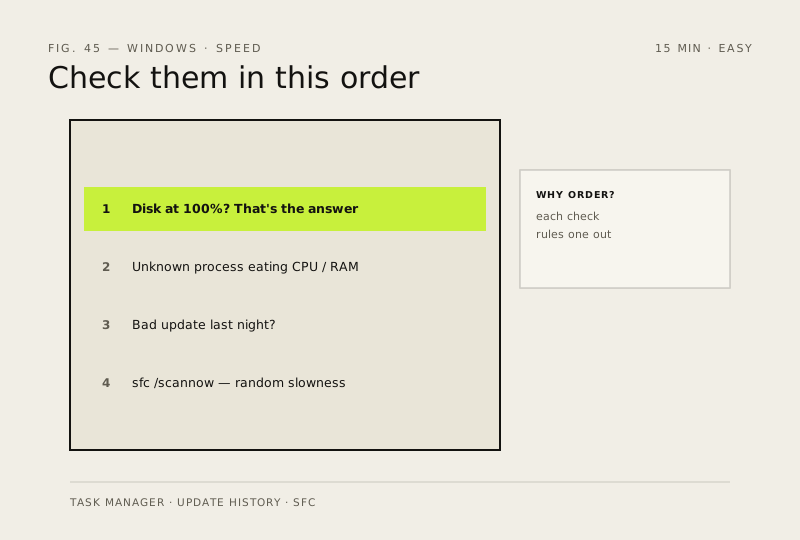
When a fast PC suddenly crawls, it's almost always one of four things. Check them in this order.
- DifficultyEasy
- Time20 min
- RiskLow
- ReversibleYes
- PlatformWin 10 / 11
- Updated
What that means
Low risk. This fix only checks things, or changes settings you can switch back in the same place. This change is reversible — you can return to the previous state without professional help or data loss.
Steps
-
Check whether the disk is pegged at 100%
You should see: A disk graph whose usage stays near 100% even when you're only browsing.
Why?
'Pegged' means the drive is working flat-out with nothing to spare, so every app queues behind it — on a mechanical hard drive this is often the whole story, and an SSD pinned at 100% for minutes may be failing.
-
Find any app eating CPU or memory
Why?
Windows deliberately fills spare memory with cache and hands it back on demand, so a high percentage alone isn't a fault — the tell is one nameable app pinned high while the rest of the PC waits.
Also see: Hunt down memory hogs
-
Check what Windows Update installed last night — and undo it
Why?
Driver updates install silently overnight; a bad GPU or storage driver is a classic cause of sudden slowness that closing apps will not fix.
Also see: Screen flickering on Windows: driver, cable or refresh rate
-
Repair corrupted system files with
DISM, thensfcYou should see: 'Windows Resource Protection found violating files and successfully repaired them', or 'did not find any integrity violations'. 'Found corrupt files but was unable to fix some' after both commands is the cue to run a disk health check.
Why?
This is Microsoft's documented order.
sfcreplaces corrupted system files from known-good copies held in the local component store;DISMrepairs that store first, sosfchas clean parts to work with — run the other way round,sfccan keep reporting files it can't fix. Corruption shows up as random slowness rather than crashes, which is why it earns a place here.
How to verify the fix
Disk usage is no longer pinned at 100%, you can name the culprit (a process, an update or repaired system files), and everyday tasks feel fast again.
If this didn't fix it
Slowness continues after all four checks — if the disk was pegged at 100%, run the disk health check linked in step 1; otherwise suspect hardware (drive or memory) rather than software.
Next stop: the related fixes below, or start a guided diagnosis.