 Menda
Menda
macOS · Mac · Speed & performance
Speed up a sluggish MacBook
Old MacBooks slow down for boring reasons: background apps and effects. Both are easy to tame.
- DifficultyEasy
- Time10 min
- RiskLow
- ReversibleYes
- PlatformmacOS
- Updated
What that means
Low risk. This fix only checks things, or changes settings you can switch back in the same place. This change is reversible — you can return to the previous state without professional help or data loss.
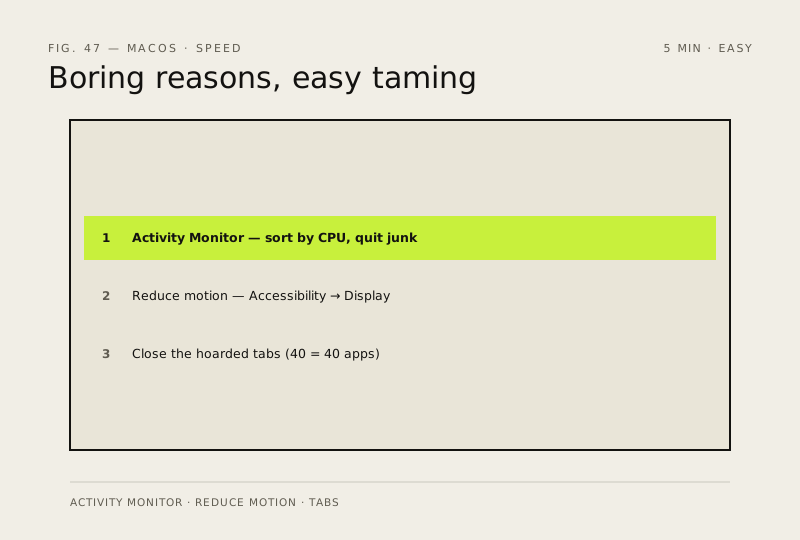
Steps
-
Open Activity Monitor
Why?
Activity Monitor is macOS' version of Task Manager — it lists every running app and what each one is using.
-
Find the process eating CPU
Why?
Don't quit processes you don't recognise that belong to macOS itself (WindowServer and friends) — a high 'kernel_task' usually means the Mac is hot and throttling itself, not a rogue app.
-
Remove apps you don't need at startup
Sequoia or later
Ventura & Sonoma
Monterey or earlier
Why?
Every app that launches at login eats memory and CPU for the whole session — on an older Mac that adds up fast. Switching off an app's background activity can stop it checking for updates or syncing, so only turn off apps you recognise and don't need.
-
Turn down the visual effects
Ventura or later
Monterey or earlier
Why?
These two settings cut the graphics work behind window animations and see-through menus — the difference is most noticeable on older MacBooks with integrated graphics, whether Intel or Apple Silicon.
-
Close the tabs you've been hoarding
Why?
Each open tab is effectively a small running app with its own memory; dozens of them add up to real pressure on an older Mac.
-
Check free disk space
Why?
macOS needs headroom for swap (the overflow space it uses when memory runs out) and temporary files; below about 10% free, everything gets visibly slower.
How to verify the fix
Activity Monitor shows no runaway CPU processes, and the Mac feels responsive with Reduce motion on.
If this didn't fix it
The MacBook is still sluggish after quitting hogs — check storage headroom (keep about 10% free) before assuming hardware failure.
Next stop: the related fixes below, or start a guided diagnosis.