 Menda
Menda
macOS · Mac · Everyday fixes
No microphone on your Mac? Check the input device first
Most 'my Mac can't hear me' problems are the wrong input device after a headset or display was connected, a slider at zero, or one app without permission. The input level meter shows which before you touch anything else.
- DifficultyEasy
- Time10 min
- RiskLow
- ReversibleYes
- PlatformmacOS
- Updated
What that means
Low risk. This fix only checks things, or changes settings you can switch back in the same place. This change is reversible — you can return to the previous state without professional help or data loss.
Steps
-
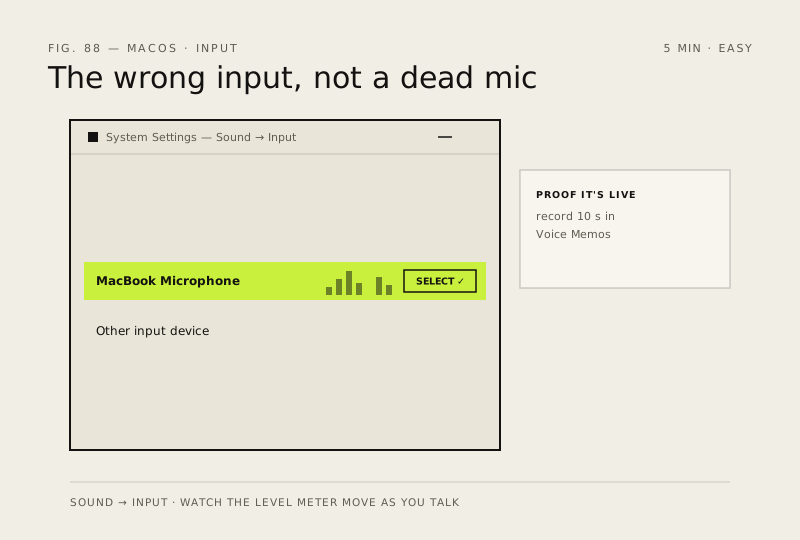
Select the microphone you mean to use
Ventura or later
Monterey or earlier
Why?
A display with a built-in microphone appears in this list too, so check which input is actually selected.
-
Watch the level meter and set the input volume
You should see: The meter moving as you talk — macOS can hear you, so anything still wrong is the app.
Why?
If there's no slider for that device, set its level on the device itself or in its own app.
-
Let the app use the microphone
-
Check the microphone inside the call
Why?
Mic Mode is available on Macs from 2018 onwards; on Ventura and Monterey it's in Control Center.
-
Prove it with a recording
You should see: Your own voice on playback — the mic works end to end.
Also see: USB device not recognised on your Mac: find the fault
How to verify the fix
The input level meter in Sound settings moves as you speak, and a Voice Memos recording plays back your voice.
If this didn't fix it
No input device you recognise appears, or the meter never moves on the built-in mic with permission granted — try an external USB mic to confirm before assuming the built-in one is dead. If the meter moves but one app hears nothing, that app's permission or microphone picker is the fault.
Next stop: the related fixes below, or start a guided diagnosis.