 Menda
Menda
macOS · Mac · Everyday fixes
No sound on your Mac? Check the output device first
Most 'my Mac has no sound' problems are a muted app, or audio going to headphones, a Bluetooth speaker or an external display instead of the speakers. Apple's fix is a settings check, not a reset.
- DifficultyEasy
- Time10 min
- RiskLow
- ReversibleYes
- PlatformmacOS
- Updated
What that means
Low risk. This fix only checks things, or changes settings you can switch back in the same place. This change is reversible — you can return to the previous state without professional help or data loss.
Steps
-
Check the app, not just the Mac
-
Disconnect anything that takes the audio
Why?
This is Apple's own second step: a connected display or headset can take the sound away from the built-in speakers without anything looking wrong.
-
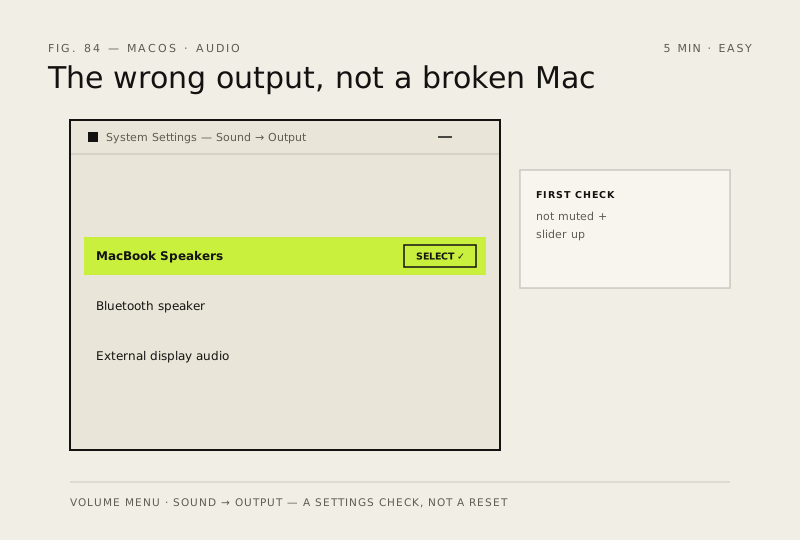
Select the speakers in Sound settings
Ventura or later
Monterey or earlier
You should see: Sound from the speakers when you play something again.
-
Sending sound somewhere else on purpose
-
Tell a settings fault from a speaker fault
How to verify the fix
Audio plays at a usable volume from the speakers or headphones you expect, and Sound → Output shows that device selected with Mute unticked.
If this didn't fix it
Built-in speakers stay silent with external devices unplugged, the speakers selected, the volume up and Mute off — Apple says they may need service. If wired headphones work but the speakers don't, that points at the speakers rather than macOS.
Next stop: the related fixes below, or start a guided diagnosis.