 Menda
Menda
macOS · Mac · Everyday how-tos
Text replacements: make your Mac type the long things
Your address, your email, your bank details for an invoice — set up text replacements, type three characters and let the Mac write the rest.
- DifficultyEasy
- Time5 min
- RiskLow
- ReversibleYes
- PlatformmacOS
- Updated
What that means
Low risk. This fix only checks things, or changes settings you can switch back in the same place. This change is reversible — you can return to the previous state without professional help or data loss.
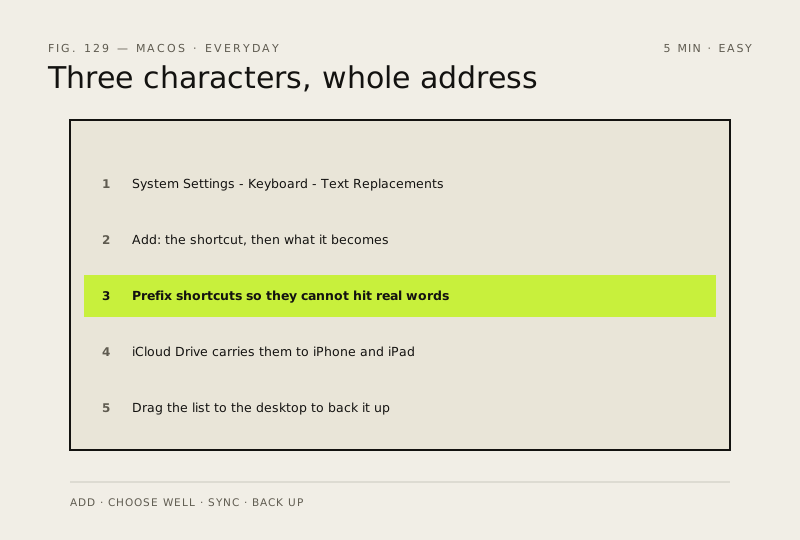
Steps
-
Open the list
It lives with the keyboard settings
Ventura or later
Monterey or earlier
You should see: A two-column list: the shortcut you type on the left, what it becomes on the right.
-
Add the ones you retype most
You should see: Your new pair listed, and working immediately in other apps.
-
Choose shortcuts you would never type by accident
This is the difference between a useful feature and a daily irritation
Why?
If a replacement fires when you did not want it, press Command-Z immediately — undo puts the typed shortcut back.
-
Get them on your iPhone and iPad too
They travel through iCloud, with no separate setting to find
You should see: The same shortcut expanding on your iPhone.
-
Back the list up once you rely on it
You should see: A .plist file on the desktop.
Careful: Think before you store anything sensitive as a replacement. It expands in any app, in front of anyone looking at your screen, and it travels to your other devices.
Also see: Turn on FileVault full-disk encryption
How to check it worked
Typing your chosen shortcut in any app expands it into the full phrase you saved.
If it didn't work
The shortcut does not expand: some apps opt out of system text replacement, and a shortcut that is also a real word will have been corrected away. Change the shortcut to something you would never type by accident.
Next stop: the related fixes below, or start a guided diagnosis.