 Menda
Menda
macOS · Mac · Everyday how-tos
Universal Clipboard: copy on one device, paste on another
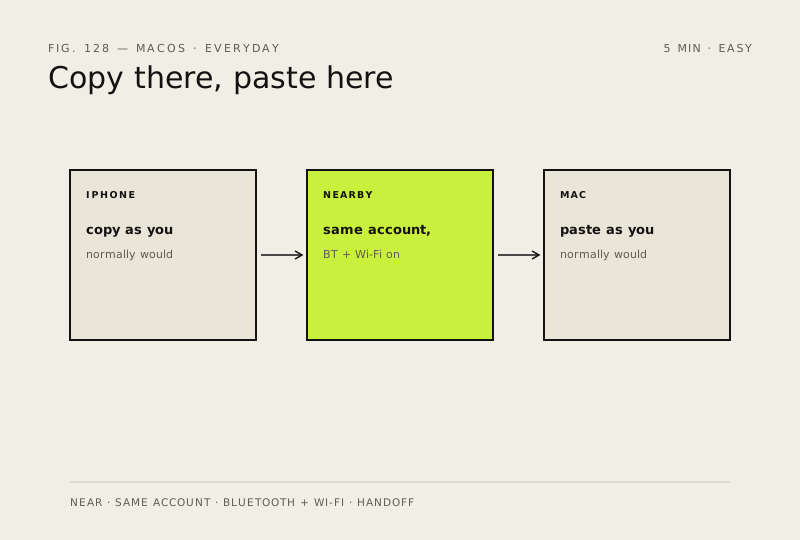
Universal Clipboard copies a paragraph, a photo or a file on your iPhone and pastes it on your Mac. No email to yourself, no AirDrop, no cable.
- DifficultyEasy
- Time5 min
- RiskLow
- ReversibleYes
- PlatformmacOS
- Updated
What that means
Low risk. This fix only checks things, or changes settings you can switch back in the same place. This change is reversible — you can return to the previous state without professional help or data loss.
Steps
-
Meet the four conditions
Apple lists exactly four, and all of them must be true
You should see: Two devices, same Apple Account, both radios on.
Why?
No network is involved in the way you might think: the devices find each other over Bluetooth and talk directly. It works without internet access.
-
Copy as you normally would
You should see: Nothing visible. The copy behaves exactly like a normal copy.
-
Paste on the other device
You should see: The text, image or file you copied, pasted on the second device.
-
Know what it carries and for how long
Apple describes copying text, images, photos and videos between devices
Why?
Treat it as a hand-off, not storage. Copy, switch device, paste — in that order and without a tea break in the middle.
-
If it will not work, check Handoff first
Handoff is the condition people most often have switched off without realising
Ventura or later
Monterey or earlier
You should see: Handoff switched on at both ends.
How to check it worked
Text copied on the iPhone pastes straight into a document on the Mac, with nothing sent, saved or shared in between.
If it didn't work
Nothing arrives: one of the four conditions is missing — usually Handoff switched off, different Apple Accounts, or Bluetooth off on one device. The clipboard also only holds the item briefly, so a long gap between copying and pasting loses it.
Next stop: the related fixes below, or start a guided diagnosis.