 Menda
Menda
macOS · Mac · Everyday fixes
macOS update won't install: unstick a stalled upgrade
An update that sits on the progress bar for hours or quits with an error is usually short of space, working from a damaged installer, or tripping over something that loads at startup.
- DifficultyMedium
- Time30 min
- RiskMedium
- ReversibleYes
- PlatformmacOS
- Updated
What that means
Medium risk. This fix changes system settings, services, drivers, startup items or security features — reversible, but taking it back takes some effort or knowledge, and it may temporarily affect stability. This change is reversible — you can return to the previous state without professional help or data loss.
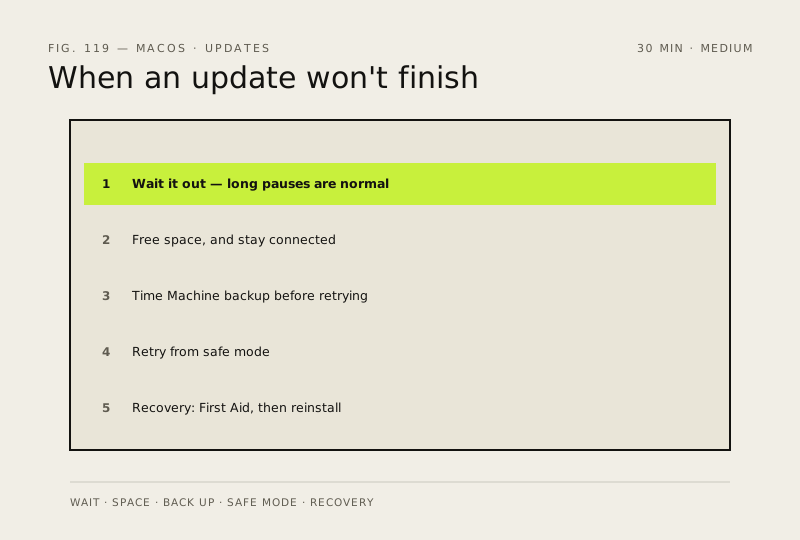
Steps
-
Wait before you call it stuck
Careful: Forcing the Mac off mid-install is a last resort, not a first move — an interrupted install is how a stalled update turns into a Mac that won't start.
-
Clear the two things that stall most installs
-
Back up before you retry
Why?
Everything below repairs or reinstalls the system volume. A current backup is what keeps a failed retry an inconvenience rather than a disaster.
Also see: Set up Time Machine properly
-
Retry the update from safe mode
You should see: 'Safe Boot' appears in the menu bar. Safe mode keeps third-party software from loading at startup, which is what Apple suggests when the Software Update route keeps failing.
-
Still failing? Install from macOS Recovery
Why?
Recovery installs with nothing else running, which is why Apple recommends it when a normal update won't complete. Apple states that reinstalling macOS this way doesn't remove your apps or personal data — have a current backup anyway.
How to verify the fix
Software Update reports the Mac is up to date, the new version shows under Apple menu → About This Mac, and the apps you use daily still open.
If this didn't fix it
It still fails after a safe-mode retry and a Recovery install — Apple's remaining steps are reviving or restoring the firmware (Apple silicon or T2 Macs) and then erasing the Mac, so make sure your backup is current and talk to Apple Support before going that far.
Next stop: the related fixes below, or start a guided diagnosis.