 Menda
Menda
macOS · Mac · Everyday fixes
iCloud not syncing on your Mac: unstick it and free space
iCloud stuck on 'Updating' forever, or files that never reach your other devices, is usually a full account or a stalled sync rather than lost data.
- DifficultyMedium
- Time15 min
- RiskLow
- ReversibleYes
- PlatformmacOS
- Updated
What that means
Low risk. This fix only checks things, or changes settings you can switch back in the same place. This change is reversible — you can return to the previous state without professional help or data loss.
Steps
-
Rule out iCloud itself before you touch anything
Why?
A service-side outage looks exactly like a broken Mac from here. Thirty seconds of checking saves you an hour of resetting things that were never wrong.
-
Check this Mac is actually set to sync
You should see: 'Sync this Mac' is on, and iCloud Drive appears in the Finder sidebar.
Careful: If another cloud service also syncs your Desktop or Documents folder, turn that one off. Apple is explicit that a second syncing app interferes with iCloud Drive updating those folders.
-
Read the real status in Finder instead of guessing
You should see: Every file you expected to sync reads 'Downloaded' or 'In iCloud' rather than sitting on 'Waiting to Upload'.
Why?
This column is the difference between a sync that is slow and a sync that has genuinely stopped. A pie chart that hasn't moved in an hour is a real stall; one creeping along is just a big upload.
-
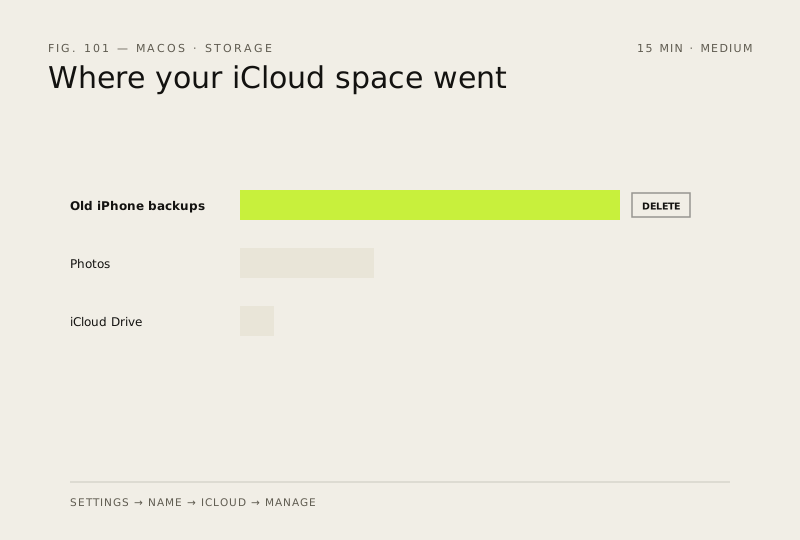
If the status says Out of Space, find what is filling it
You should see: The storage bar leaves visible free space, and files that read 'Out of Space' start uploading.
Careful: Deleting a device backup is permanent. Make sure the device is gone, or already backed up elsewhere, before you remove its backup.
Also see: Set up Time Machine properly
-
Last resort: sign out and back in to restart the sync
Careful: Choose 'Keep a Copy'. If you don't, documents and data that exist only in iCloud are removed from this Mac when you sign out.
Why?
Copies you keep are a snapshot: while you're signed out, iCloud stops keeping them up to date with your other devices.
How to verify the fix
The iCloud Status column reads Downloaded or In iCloud rather than Waiting to Upload, and a file you change on the Mac appears on another device within a minute.
If this didn't fix it
If storage is full and you cannot free enough, the only fix is a larger plan or moving files to a local drive. If one app never syncs while others do, reinstall that app rather than resetting iCloud. If every file sits on 'Waiting to Upload' with space free and no outage, sign out and back in before assuming the files are lost — they are still on the Mac.
Next stop: the related fixes below, or start a guided diagnosis.