 Menda
Menda
Win 10 / 11 · Everyday how-tos
Voice typing: type with your voice
Long email, aching wrists, or a thought you would rather just say — voice typing writes it for you, in any text box.
- DifficultyEasy
- Time5 min
- RiskLow
- ReversibleYes
- PlatformWin 10 / 11
- Updated
What that means
Low risk. This fix only checks things, or changes settings you can switch back in the same place. This change is reversible — you can return to the previous state without professional help or data loss.
Steps
-
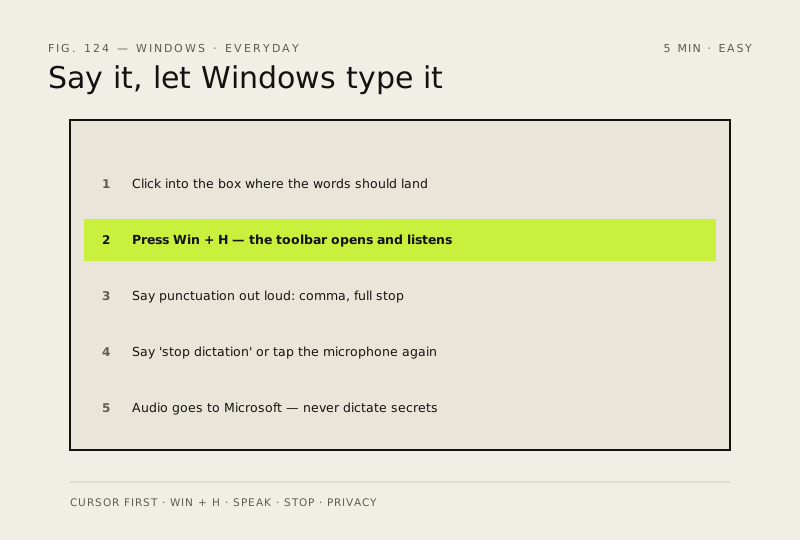
Put the cursor where the words should land
You should see: A normal flashing cursor in the place you want the text.
-
Press Windows logo key + H
You should see: A small toolbar with a microphone on it, and your words appearing as you speak.
-
Say the punctuation out loud
Why?
Treat the first pass as a rough draft. Dictation is quick at getting thoughts down and poor at formatting — tidy up with the keyboard at the end.
-
Stop when you are done
You should see: The toolbar disappears and the microphone stops listening.
-
Know what leaves the machine
Voice typing is an online service, so what you say is sent to Microsoft to be turned into text
Careful: Because the audio leaves your PC, do not dictate anything you would not send in an email — card numbers, passwords, confidential case details.
Also see: Stop Windows tracking your location
How to check it worked
Pressing Windows logo key + H opens a small toolbar with a microphone, and words appear where your cursor is as you speak.
If it didn't work
The toolbar opens but nothing is transcribed: the wrong microphone is selected, or no app has permission to use it. If dictation stops mid-sentence, the service has lost its connection rather than misheard you.
Next stop: the related fixes below, or start a guided diagnosis.