 Menda
Menda
Win 10 / 11 · Windows
Fix a microphone no one can hear
'You're on mute' is usually a mute switch, Windows listening to the wrong input, or microphone access switched off for the app you're calling from. Windows' own microphone test tells you which in a minute.
- DifficultyEasy
- Time10 min
- RiskLow
- ReversibleYes
- PlatformWin 10 / 11
- Updated
What that means
Low risk. This fix only checks things, or changes settings you can switch back in the same place. This change is reversible — you can return to the previous state without professional help or data loss.
Steps
-
Check the mute you can touch
-
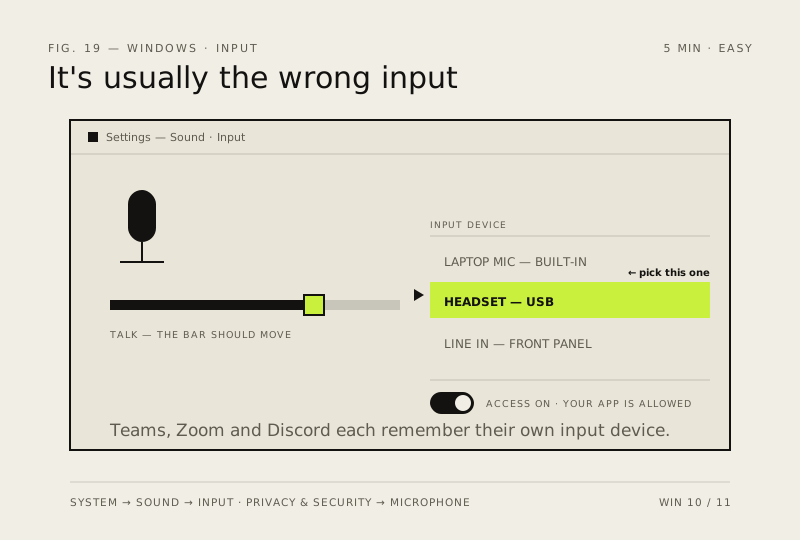
Choose the right input and run Windows' microphone test
Windows 11
Windows 10
You should see: Your voice played back, or the test bar moving as you speak — Windows can hear you, so anything still wrong is permissions or the app.
-
Allow microphone access
Windows 11
Windows 10
Why?
Desktop apps aren't listed one by one, so one switch covers all of them. A webcam with a built-in mic also needs camera access on.
-
Set the same mic inside the calling app
-
Run the troubleshooter, then reinstall the audio driver
Careful: Sound stops entirely until the restart, so don't do this in the middle of a call.
Also see: No sound? The four-minute fix
How to verify the fix
Windows' microphone test plays back your voice, and the other person can hear you in your calling app.
If this didn't fix it
The microphone test records nothing on every input and the mic still isn't heard after reinstalling the audio driver — try another microphone or headset to isolate hardware. If Windows' test works but one app doesn't, that app's microphone setting is the fault.
Next stop: the related fixes below, or start a guided diagnosis.