 Menda
Menda
Win 10 / 11 · Security
Turn on full-disk encryption (BitLocker)
If your laptop is stolen or lost, an unencrypted drive is just a USB stick with someone else's life on it. BitLocker makes the data unreadable without your sign-in.
- DifficultyEasy
- Time5 min
- RiskMedium
- ReversibleYes
- PlatformWin 10 / 11
- Updated
What that means
Medium risk. This fix changes system settings, services, drivers, startup items or security features — reversible, but taking it back takes some effort or knowledge, and it may temporarily affect stability. This change is reversible — you can return to the previous state without professional help or data loss.
Steps
-
See what you already have
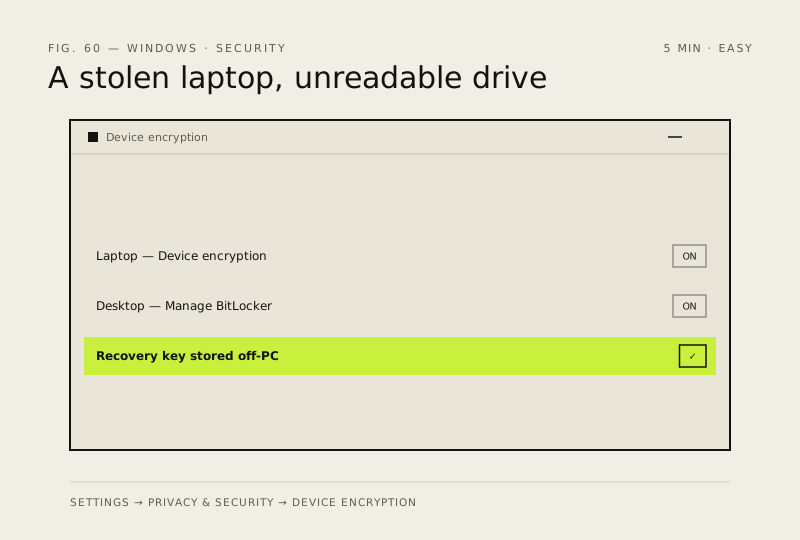
You should see: Device encryption On, or Manage BitLocker listing your system drive.
Why?
Device encryption and BitLocker are the same underlying protection with different amounts of control. Many laptops ship with it already on.
-
Decide where the recovery key will live — before you encrypt
Careful: Save it somewhere that is not this PC. A recovery key stored only on the encrypted drive is no key at all. Microsoft is explicit that it cannot retrieve, provide or recreate a lost BitLocker recovery key — lose it and the data is gone.
Why?
The recovery key is a 48-digit number. Windows asks for it when it can't unlock the drive automatically.
-
Turn it on
You should see: The drive shows as encrypted, and the machine behaves exactly as it did before.
-
Save the key, then prove the copy works
You should see: The 48-digit key displayed on another device — your phone counts.
Careful: Do this today, not when you need it. Every lockout story is someone who assumed the key had been saved.
-
Avoid the lockout that catches people out
Why?
This is far and away the most common way people lock themselves out, and it is entirely avoidable: suspend first, or just have the key to hand.
How to verify the fix
Device encryption or BitLocker reads On for the system drive, and you have opened your saved recovery key from a different device to prove the copy is real.
If this didn't fix it
There is no encryption option in Settings at all — that is your Windows edition or missing hardware, not a mistake you made. If Windows asks for the recovery key at every start, the TPM has stopped trusting the boot: enter the key, then suspend and resume protection to re-seal it. A key you cannot produce is unrecoverable — Microsoft states it cannot retrieve, provide or recreate one.
Next stop: the related fixes below, or start a guided diagnosis.