 Menda
Menda
Win 10 / 11 · Windows
Convert your disk from MBR to GPT for Secure Boot
Windows installed the old way can't use Secure Boot, and that blocks Windows 11. Microsoft's own tool converts the disk without deleting your files — but it cannot be undone, so the order matters.
- DifficultyAdvanced
- Time45 min
- RiskHigh
- ReversibleNo
- PlatformWin 10 / 11
- Updated
What that means
High risk. This fix makes deep system changes with a real chance of data loss. Back up your important files before you start. This change is not fully reversible — read every step before you begin and make sure your important work is saved.
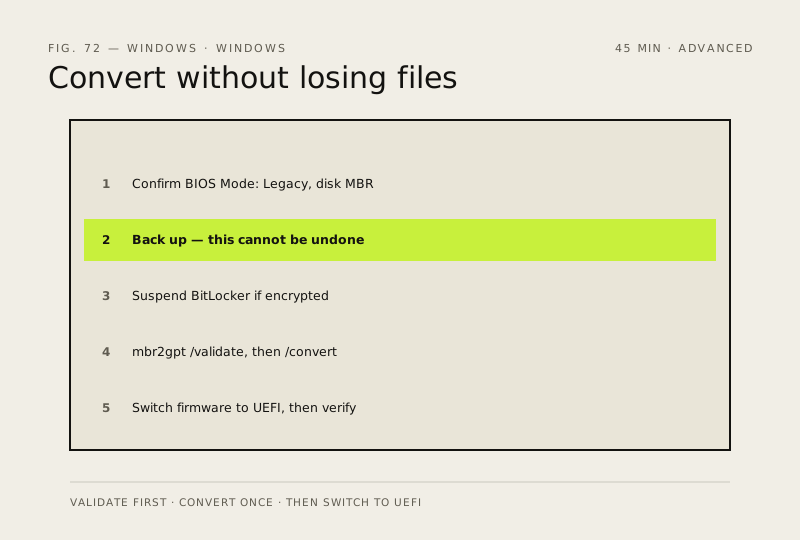
Steps
-
Confirm you actually need this, and that the PC can take it
You should see: BIOS Mode: Legacy in msinfo32 and Partition Style: MBR in
Get-Disk— that pair is what this fix is for.Careful: Microsoft is explicit that you must make sure the device supports UEFI before attempting the conversion. Converting a disk on a PC whose firmware cannot boot UEFI leaves you with a machine that will not start.
-
Back up, properly, before anything else
Careful: The tool itself prints 'These changes cannot be undone!' before it runs. It does not modify or delete your data by design, but a conversion that fails partway leaves the disk in a state you recover from with a backup, not with another command.
Also see: Back up properly (3-2-1 rule)
-
Suspend BitLocker if the drive is encrypted
Careful: Have your BitLocker recovery key in front of you before you touch anything. Firmware changes are exactly the kind of event that makes Windows ask for it on the next start, and Microsoft cannot retrieve or recreate a lost key.
Also see: Turn on full-disk encryption (BitLocker)
-
Validate first, then convert
You should see: 'MBR2GPT: Conversion completed successfully', followed by the tool's own reminder that you must switch the firmware to UEFI mode before the system can boot properly.
Careful: Do not skip /validate. Microsoft's tool checks the disk is MBR, is the system disk, has at most three primary partitions, no extended or logical partitions, a valid boot entry and room for the GPT headers. If any check fails the conversion does not proceed — that refusal is protecting you.
Why?
/allowFullOS lets the tool run inside Windows rather than from a recovery environment. Microsoft notes that in this case the existing system partition is in use, so a new EFI system partition is created by shrinking the Windows partition instead.
-
Switch the firmware to UEFI, then verify
You should see: Partition Style GPT, BIOS Mode UEFI, Secure Boot State On — and two clean restarts.
Why?
If the old MBR system partition was not reused, it may now show up with a drive letter you don't want. Microsoft's guidance is to hide that letter manually rather than delete the partition.
How to verify the fix
Get-Disk reports Partition Style GPT, msinfo32 shows BIOS Mode: UEFI with Secure Boot State: On, and Windows starts normally twice in a row.
If this didn't fix it
mbr2gpt /validate fails — read the reason in setuperr.log and stop; the disk does not meet the requirements and converting anyway is not an option the tool offers. If the PC won't boot after converting, the firmware is still set to legacy/CSM: go back into firmware and switch it to UEFI, which is the documented final step rather than a sign the conversion failed.
Next stop: the related fixes below, or start a guided diagnosis.