 Menda
Menda
Win 10 / 11 · Gaming
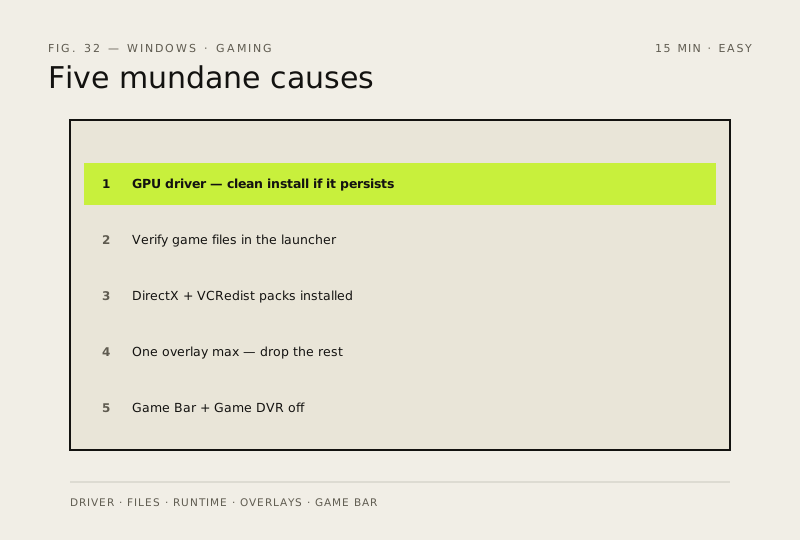
Stop games stuttering — the 5-point checklist
Most 'random lag spikes' trace back to one of five mundane causes. Knock them all out.
- DifficultyEasy
- Time25 min
- RiskMedium
- ReversibleYes
- PlatformWin 10 / 11
- Updated
What that means
Medium risk. This fix changes system settings, services, drivers, startup items or security features — reversible, but taking it back takes some effort or knowledge, and it may temporarily affect stability. This change is reversible — you can return to the previous state without professional help or data loss.
What usually goes wrong
- DDU must run in Safe Mode, network disconnected, or a normal desktop reinstalls the driver mid-clean.
- Stutter at a healthy frame rate usually isn't the GPU — watch the frametime graph, not the FPS counter.
- Shader-compilation stutter in a game's first hour is normal and settles on its own.
- Uncapping the frame rate without a limiter pins the GPU at 100% — cap a few frames below refresh rate instead.
Steps
-
Make sure your GPU driver is current — and clean
Why?
A 'clean install' strips the old driver's settings first; half-cleaned drivers are a classic cause of stutter that survives an update.
Also see: Start Windows in Safe Mode
-
Verify the game files
Why?
'Verify' re-downloads anything missing or corrupted — the cheapest fix on this list.
-
Check whether the PC is throttling from heat
Why?
Throttling is the hardware slowing itself down to stay cool; it reads as random stutter because it kicks in exactly when load spikes.
Also see: Fix a PC that overheats and fans like a jet engine
-
Keep at most one overlay running
Why?
An overlay draws on top of the game (FPS counters, chat pings) and hooks into its frame loop — two or three at once is where stutters come from.
-
Turn off background recording (and Game Bar on Windows 10)
Windows 11
Windows 10
You should see: The background-recording setting shows Off — 'Record what happened' on Windows 11, 'Record in the background while I'm playing a game' on Windows 10 (where the Xbox Game Bar switch also shows Off) — and the game no longer keeps a silent rolling capture running.
Why?
Background recording keeps your last few minutes of gameplay in memory, running whether you use it or not. WinAltR only starts a manual recording — it isn't the same thing.
How to verify the fix
Play a session that previously stuttered — lag spikes are gone and frame times stay stable.
If this didn't fix it
Stutter persists after all five points — suspect hardware (thermals, RAM) or an unfound background process.
Next stop: the related fixes below, or start a guided diagnosis.