 Menda
Menda
Win 10 / 11 · Maintenance
Run a disk health check before it's too late
A drive gives you warning before it fails, if you know where Windows keeps the numbers. Five minutes now is the difference between a planned replacement and a lost weekend.
- DifficultyMedium
- Time15 min
- RiskLow
- ReversibleYes
- PlatformWin 10 / 11
- Updated
What that means
Low risk. This fix only checks things, or changes settings you can switch back in the same place. This change is reversible — you can return to the previous state without professional help or data loss.
What usually goes wrong
- chkdsk tells you very little about an SSD. The maker's own tool is the check that means something there.
- Clicking, ticking, or a drive that disappears and comes back: stop testing and copy the data off now. Every extra powered-on hour is spending down what you can still recover.
Steps
-
Read the health page Windows actually keeps
Windows has one, and it is not in Task Manager
Windows 11
Windows 10
You should see: A drive health section listing estimated remaining life, available spare and temperature.
Why?
NVMe drives are the stick-shaped ones that slot straight onto the motherboard. A 2.5-inch drive on a cable is SATA, and Windows will not report on it here.
-
Understand the three numbers
They are percentages and a temperature, not a pass or fail
You should see: Three figures you can write down and compare against in six months.
Why?
The useful habit is checking twice a year and remembering the numbers. A single reading tells you little; the same figure dropping noticeably between checks tells you a lot.
-
Act on what they say
Microsoft's own advice for a storage warning is short: back up your data
Careful: A drive does not have to be dying for your data to be at risk, and a healthy reading is never a reason to skip the backup. Treat these numbers as a reason to act early, not as permission to wait.
Also see: Back up properly (3-2-1 rule)
-
Check a SATA SSD or hard drive another way
Windows will not, so use the maker's tool
Why?
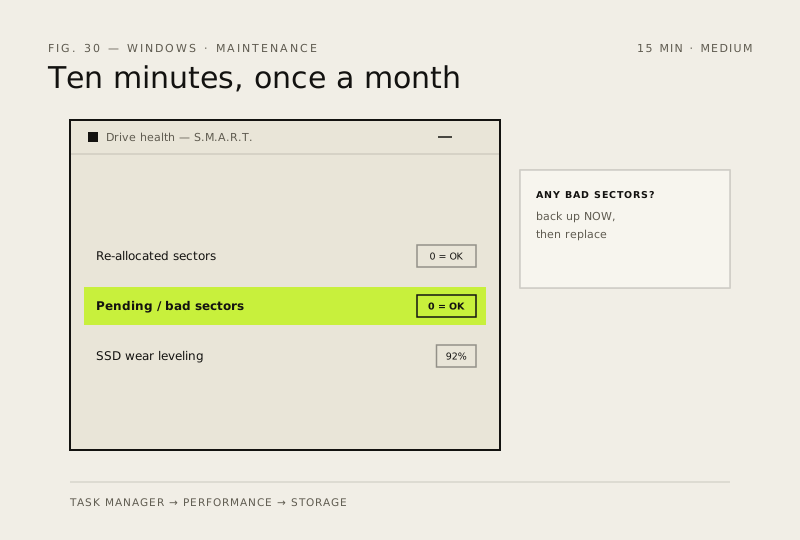
S.M.A.R.T. reporting OK is not a clean bill of health. It only means no threshold the manufacturer chose has been crossed yet — a reallocated sector count that is climbing at all is the warning, whatever the overall verdict says.
-
Run
chkdskfor file-system trouble, not for wearDifferent job:
chkdskchecks the file system, not the hardware's remaining lifeCareful: Do not run
chkdsk /ron a drive you already suspect. The full surface scan hammers a failing disk for hours and is quite capable of finishing it off. Copy the data somewhere safe first, then test.Also see: Repair corrupted system files
How to verify the fix
You can state your system drive's estimated remaining life and available spare as percentages, and you know whether a current backup exists.
If this didn't fix it
Windows shows no health page for the drive: it is not an NVMe SSD, and Windows does not monitor SATA SSDs or hard drives. Use the drive maker's own tool instead. A drive that is clicking, or that disappears and comes back, is past the point of testing — copy the data off now.
Next stop: the related fixes below, or start a guided diagnosis.