 Menda
Menda
Win 10 / 11 · Windows
Fix a webcam that won't turn on
A webcam showing black or 'no camera found' is nearly always switched off or blocked — by a shutter or camera key, a privacy setting, or another app holding it — before it's the driver. The Camera app and its error code tell you which.
- DifficultyEasy
- Time10 min
- RiskLow
- ReversibleYes
- PlatformWin 10 / 11
- Updated
What that means
Low risk. This fix only checks things, or changes settings you can switch back in the same place. This change is reversible — you can return to the previous state without professional help or data loss.
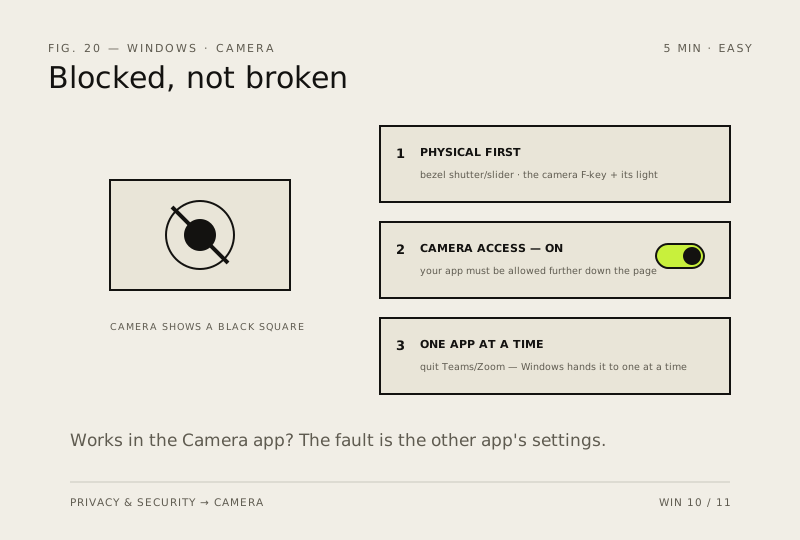
Steps
-
Check the camera is physically on
Why?
Microsoft notes a camera switched off this way can look blocked or show a grey picture rather than an error.
-
Allow camera access
Windows 11
Windows 10
Why?
Desktop apps don't appear in the per-app list, so if the desktop switch is off, every one of them sees no camera.
-
Test in the Camera app and read the error code
You should see: A live picture in the Camera app means the camera, driver and privacy settings are all fine.
-
Free the camera from other apps
Careful: If you turn security software off to test, turn it straight back on afterwards.
-
Fix the camera driver
Careful: Microsoft warns the generic USB Video Device driver can stop Windows Hello face sign-in working — set up a PIN first.
How to verify the fix
The Camera app shows a live picture with no error code, and your calling app shows your video after you restart it.
If this didn't fix it
The Camera app still shows 0xA00F4244 (no camera detected) after the driver steps, or an external webcam fails on another PC too — the camera hardware is the likely fault. If it works in the Camera app but not one app, that app's camera setting is the fault.
Next stop: the related fixes below, or start a guided diagnosis.