 Menda
Menda
Any · Hardware
Know your BIOS settings (the 5 that matter)
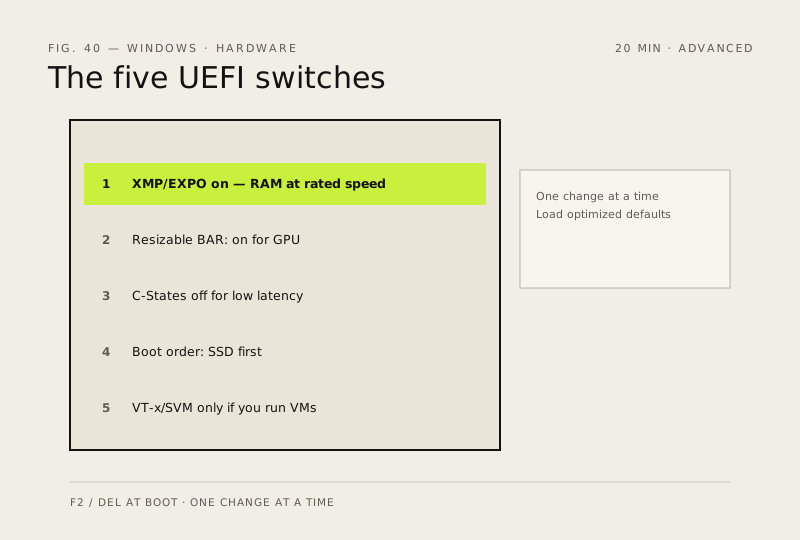
Most of the speed potential in a PC is already there — it's locked in the BIOS/UEFI. Five settings unlock most of it.
- DifficultyAdvanced
- Time20 min
- RiskHigh
- ReversibleYes
- PlatformAny
- Updated
What that means
High risk. This fix makes deep system changes with a real chance of data loss. Back up your important files before you start. This change is reversible — you can return to the previous state without professional help or data loss.
Steps
-
Set up a way back before you change anything
Careful: This is the one step you cannot skip. If a change stops the PC posting, UEFI is no longer reachable — clearing the CMOS is then the only way back in, and it resets every other setting with it.
Why?
Changing five things at once and getting a PC that won't start tells you nothing about which one did it. One at a time is slower and it is the difference between a five-minute fix and an afternoon.
-
Get into UEFI
You should see: The firmware setup screen, usually with a simple mode and an advanced mode — the settings below mostly live in the advanced one.
Why?
The Windows route avoids the timing game entirely, and it is the only reliable way in on a PC with fast boot enabled.
-
Turn on the memory profile (XMP on Intel, EXPO on AMD)
You should see: Memory Speed in Task Manager matches the rating on the box — not the speed memory falls back to until a profile is enabled, which is typically 2133 or 2400 MHz for DDR4 and 4800 MHz for DDR5.
Careful: A memory profile is an overclock, just one the manufacturer pre-tested. Not every kit reaches its rated speed on every board. If the PC becomes unstable — random restarts, crashes under load, failures hours later — this is the first setting to turn back off.
Also see: Upgrade your RAM (and match it)
-
Turn on Resizable BAR for the graphics card
Why?
Resizable BAR lets the CPU address the whole of the graphics card's memory at once instead of in small windows. The gain is real but modest and game-dependent — a few per cent, not a transformation.
-
Boot order, virtualisation and C-States
Careful: Don't disable C-States on a laptop. They are a large part of how it reaches its rated battery life.
How to verify the fix
The PC boots normally, RAM runs at its rated speed (Task Manager → Performance → Memory shows the speed your kit is sold as), and the settings are still there after two restarts.
If this didn't fix it
The PC won't post, or is unstable after a change — go back into UEFI and undo that one setting, or load optimised defaults. If you can't reach UEFI at all, clear the CMOS (step 1). Instability that only appears under load, hours later, is usually the memory profile: turn it off first.
Next stop: the related fixes below, or start a guided diagnosis.