 Menda
Menda
macOS · Mac · Security & backups
Pop-ups and hijacked search on your Mac: remove the adware
Pop-ups that won't go away, a search engine you never chose, or ads on sites that never had them: that's adware you installed by accident, and macOS clears most of it itself.
- DifficultyMedium
- Time20 min
- RiskMedium
- ReversibleYes
- PlatformmacOS
- Updated
What that means
Medium risk. This fix changes system settings, services, drivers, startup items or security features — reversible, but taking it back takes some effort or knowledge, and it may temporarily affect stability. This change is reversible — you can return to the previous state without professional help or data loss.
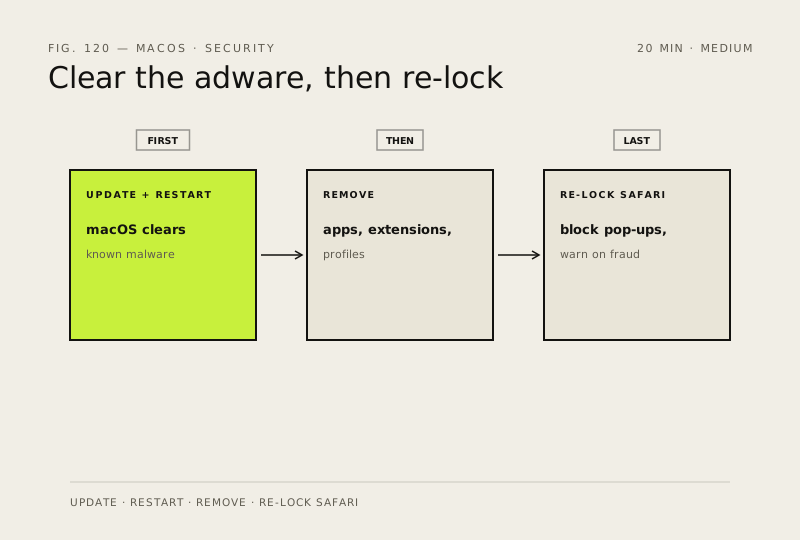
Steps
-
Update macOS, then restart
Why?
Apple's own advice starts here: macOS carries a built-in tool that removes known malware when the Mac restarts, so updating and restarting clears a lot of this without you hunting for anything.
Also see: Keep macOS updated the safe way
-
Look for apps you didn't install
Careful: Don't delete anything you're unsure about — search the name first. Removing something an app you rely on installed will break that app.
-
Turn off Safari extensions you didn't add
You should see: The Extensions list holds only extensions you recognise and chose.
Also see: Give Safari a proper clean-out
-
Remove configuration profiles you didn't install
Careful: On a Mac managed by an employer or a school, the profile belongs there and removing it can cut off mail, Wi-Fi or VPN access — check with them first.
Why?
Adware uses a profile to pin a homepage or search engine in place, which is why changing it back in the browser doesn't stick.
-
Put Safari's own defences back on
You should see: Pop-ups stop appearing, and Safari warns you before it loads a site it knows to be fraudulent.
How to verify the fix
Pop-ups stop, your homepage and search engine are the ones you chose, and Safari's Extensions list holds only extensions you recognise.
If this didn't fix it
Pop-ups come back after a restart, or a profile reappears once removed — an app you haven't found yet is putting it back. If the Mac is managed by an employer or a school, the profile is meant to be there; ask them rather than removing it.
Next stop: the related fixes below, or start a guided diagnosis.