 Menda
Menda
macOS · Mac · Everyday fixes
External monitor not detected on your Mac?
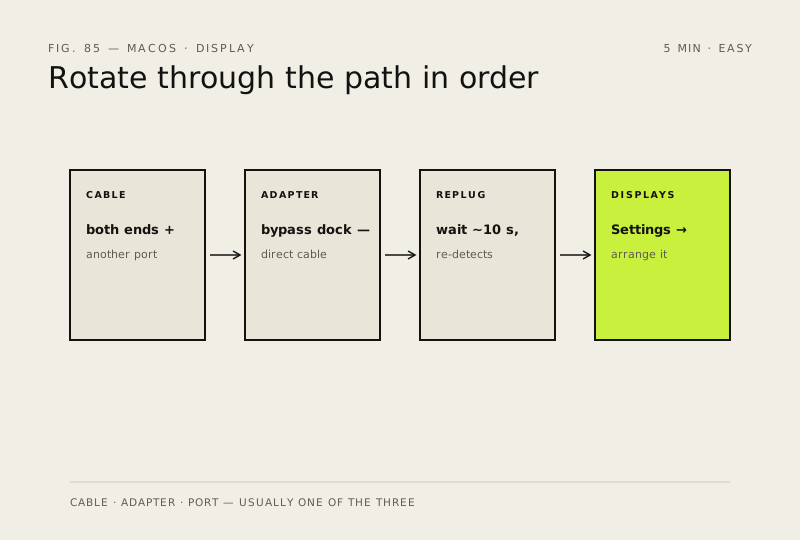
A second screen macOS refuses to see is usually the cable, the adapter or a hub — or a Mac asked to drive more displays than it supports. Check the path in order and make macOS look again before suspecting the display.
- DifficultyEasy
- Time10 min
- RiskLow
- ReversibleYes
- PlatformmacOS
- Updated
What that means
Low risk. This fix only checks things, or changes settings you can switch back in the same place. This change is reversible — you can return to the previous state without professional help or data loss.
Steps
-
Check the cables, the adapter and the port
Why?
Similar-looking ports aren't all the same — Apple advises identifying the port before blaming the display.
-
Check your Mac supports that many displays
Why?
Limits depend on the Mac, the display, the cable and what else is connected — one display over the limit simply stays dark. For example, MacBook Air with M1 or M2 supports one external display — check your own model's specifications.
-
Make macOS look again
You should see: The display listed in Displays settings, where you can arrange it.
-
Allow the display to connect
-
If it's detected but dark or blurry
Also see: Keep macOS updated the safe way
How to verify the fix
The display appears in System Settings → Displays, and a window dragged onto it stays there after you sleep and wake the Mac.
If this didn't fix it
Nothing shows with a known-good cable straight into the Mac, within your Mac's display limit, after Detect Displays and a restart — the display or cable may be faulty. Test the display on another computer, then contact Apple or the display's maker.
Next stop: the related fixes below, or start a guided diagnosis.