 Menda
Menda
macOS · Mac · Everyday fixes
AirDrop not working between your Mac and iPhone
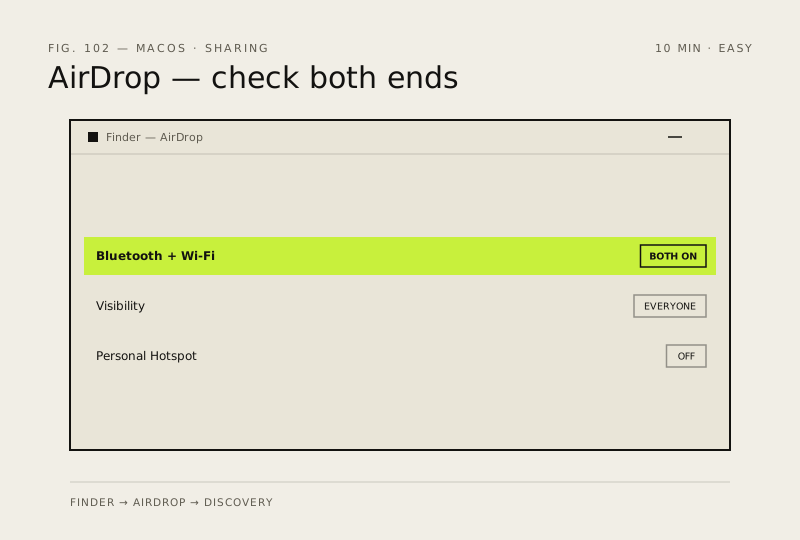
AirDrop showing no devices is almost always a visibility setting or one radio switched off. Both ends need Wi-Fi and Bluetooth on, even though no network is involved.
- DifficultyEasy
- Time10 min
- RiskLow
- ReversibleYes
- PlatformmacOS
- Updated
What that means
Low risk. This fix only checks things, or changes settings you can switch back in the same place. This change is reversible — you can return to the previous state without professional help or data loss.
What usually goes wrong
- Set discovery back to Contacts Only when you finish, or anyone nearby can send you files unprompted.
- AirDrop needs no internet connection at all, so do not waste time troubleshooting your router for this.
- A transfer that seems to have vanished has usually just been saved. Check Downloads on a Mac, and the Photos or Files app on an iPhone, before sending it again.
Steps
-
Turn both radios on at both ends
AirDrop needs Wi-Fi and Bluetooth, even though no network is involved
You should see: Wi-Fi and Bluetooth both on, on the Mac and the iPhone.
Why?
No internet connection is required at all, so there is no point troubleshooting your router for this.
-
Make each device visible to the other
Visibility is the setting that hides devices from each other
You should see: The other device appearing in the AirDrop window within a few seconds.
Careful: Set discovery back to Contacts Only when you finish, or anyone nearby can send you files unprompted.
-
Send the thing
Two routes, depending on where the file is
You should see: The recipient's name or picture in the AirDrop sheet, with a progress ring while it sends.
Also see: Universal Clipboard: copy on one device, paste on another
-
Accept it at the other end, and know where it goes
Nothing arrives until the receiving device says yes
You should see: The file in Downloads on the Mac, or in the matching app on the iPhone.
Why?
This is the step people miss when a transfer 'fails': it went through, and it is sitting in Downloads rather than on the desktop where they were looking.
-
Rule out the two things that block it silently
Both look like AirDrop is broken when it is not
You should see: The devices finding each other once both screens are awake and the hotspot is off.
How to verify the fix
The other device appears in the AirDrop window within a few seconds, and a small test file transfers and opens cleanly at the other end.
If this didn't fix it
If the devices see each other but transfers fail partway, switch Bluetooth off and on at both ends. If the Mac never appears to anyone, check Firewall settings for 'Block all incoming connections'.
Next stop: the related fixes below, or start a guided diagnosis.