 Menda
Menda
Win 10 / 11 · Everyday how-tos
Snap layouts: put two windows side by side
Stop dragging windows around by hand. Snap layouts give Windows a grid, and three keys put any window exactly where you want it.
- DifficultyEasy
- Time3 min
- RiskLow
- ReversibleYes
- PlatformWin 10 / 11
- Updated
What that means
Low risk. This fix only checks things, or changes settings you can switch back in the same place. This change is reversible — you can return to the previous state without professional help or data loss.
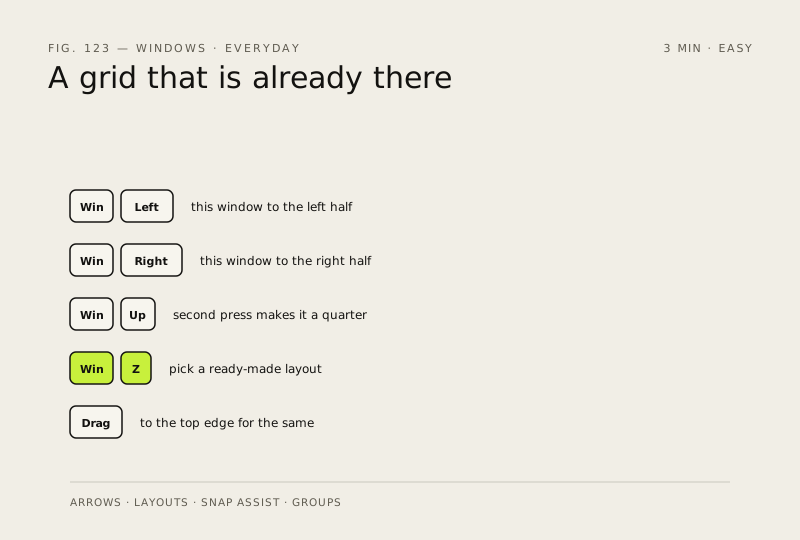
Steps
-
The keyboard way, which is the fast way
You should see: The window you were using resizes and locks to one side of the screen.
Why?
This is muscle memory worth building: it is the same three keys on every Windows PC, and it never needs the mouse.
-
Pick a ready-made layout instead
You should see: A small grid of layout choices over the window's maximize button.
-
Let Windows fill the rest for you
You should see: Thumbnails of your other windows offered for the empty parts of the layout.
-
Turn the behaviour you dislike off
Snap can be switched off entirely, which is the first thing to check if nothing snaps
You should see: The Snap windows toggle, with its options listed underneath.
-
Get the pair back later
On Windows 11, windows you snapped together are remembered as a group: hover over one of those apps on the taskbar to bring the whole arrangement back
Why?
If snap groups are not available on your PC, re-snapping takes two keystrokes anyway — hold the Windows logo key and press an arrow for each window.
How to check it worked
A window jumps to half (or a quarter) of the screen and Windows offers to fill the rest of the layout with your other open windows.
If it didn't work
Nothing snaps: Snap is switched off in Settings → System → Multitasking. Some apps also refuse to resize below a minimum size, so a layout that would make them smaller than that will not take them.
Next stop: the related fixes below, or start a guided diagnosis.