 Menda
Menda
Any · Hardware
Move your OS or games to an SSD
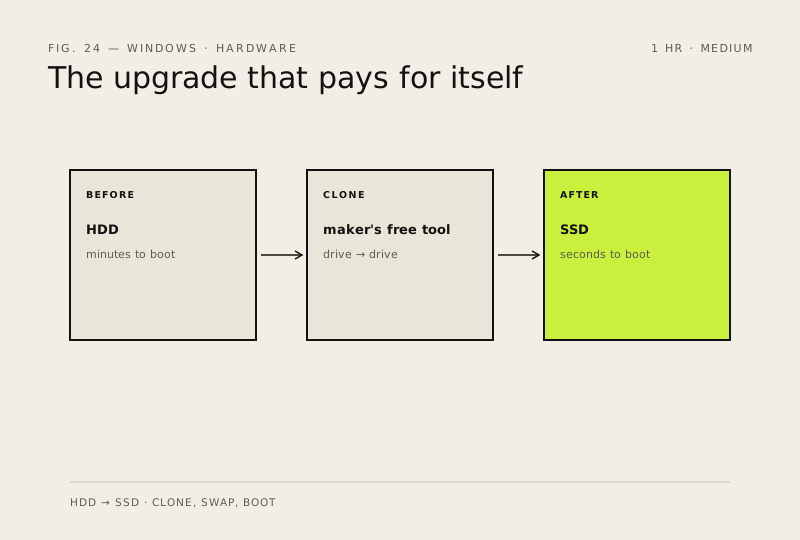
HDD → SSD is the single biggest speed upgrade you can make. Boot times go from minutes to seconds.
- DifficultyMedium
- Time1 hr
- RiskHigh
- ReversibleNo
- PlatformAny
- Updated
What that means
High risk. This fix makes deep system changes with a real chance of data loss. Back up your important files before you start. This change is not fully reversible — read every step before you begin and make sure your important work is saved.
Steps
-
Buy the right drive
Why?
TLC drives are the usual sweet spot for price against endurance. QLC drives are cheaper and fine for storage, but they lean harder on a fast cache — once a long write exhausts it, the speed drops away sharply.
-
Back up before you touch anything
Careful: This fix ends with a drive swap and is marked irreversible for a reason: a clone that goes wrong can leave neither drive bootable. The backup is what makes that an inconvenience instead of a disaster.
Why?
An SSD smaller than the source is the single most common reason a clone refuses to start afterwards.
Also see: Back up properly (3-2-1 rule)
-
Clone the whole drive, not just C:
You should see: The tool reports the clone finished with no errors, and the new drive shows the same partitions as the old one in Disk Management.
Careful: Cloning only C: produces a perfect copy of your files that will not boot. The small hidden EFI and recovery partitions are what make a disk startable, and they are not part of C:.
-
Swap the drives and boot once, carefully
Careful: Leaving the old drive connected for the first boot is how people conclude the clone failed: the boot manager can start from the new drive while still pointing at the old one, so you end up running the old install without realising.
Why?
If Windows stops with INACCESSIBLE_BOOT_DEVICE, the drive is usually fine — it is the SATA/NVMe mode in UEFI that is wrong.
-
Verify, then leave the old drive alone
You should see: Boot takes seconds rather than minutes, and Task Manager → Performance shows the SSD as the system drive.
Careful: Don't wipe the old drive the same day. It is your only way back, and the things that turn out to be missing — a licence key, a save folder, a mail archive — surface in week three, not on day one.
How to verify the fix
Windows boots from the SSD in seconds, your files and apps are all present, and Task Manager → Performance shows the SSD as the system drive.
If this didn't fix it
The PC won't boot from the new drive — put the old drive back as the first boot device before anything else; it is untouched and will still start. INACCESSIBLE_BOOT_DEVICE points at SATA/NVMe mode in UEFI, not a bad clone. A clone that boots but is missing the recovery partition means only C: was copied, and the clone needs redoing from the whole disk.
Next stop: the related fixes below, or start a guided diagnosis.