 Menda
Menda
Win 10 / 11 · Windows
Take a screenshot or record your screen on Windows
Windows has several ways to capture the screen and one to record it, and none needs an app. Which you reach for depends on whether you want the whole screen or part of it.
- DifficultyEasy
- Time5 min
- RiskLow
- ReversibleYes
- PlatformWin 10 / 11
- Updated
What that means
Low risk. This fix only checks things, or changes settings you can switch back in the same place. This change is reversible — you can return to the previous state without professional help or data loss.
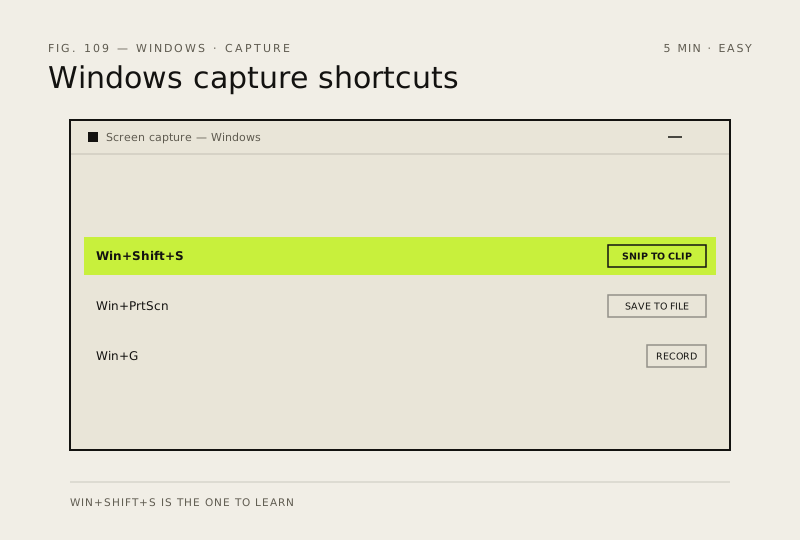
What usually goes wrong
- A capture that goes to the clipboard is not a file. Paste it into something, or use Windows + Print Screen, which saves one.
- If Print Screen suddenly behaves differently after a Windows update or on a new PC, it is the Accessibility switch, not the hardware.
Steps
-
Learn one shortcut: Windows + ShiftS
This is the one that behaves the same everywhere
You should see: The screen dims with a small toolbar at the top, and your selection is on the clipboard.
-
Know what your Print Screen key is set to do
It has two possible behaviours and a switch that decides
You should see: The Print screen key switch in Accessibility settings, either on or off.
Why?
This is why two people can disagree about what Print Screen does and both be right. Check the switch before deciding your keyboard is broken.
-
Use the two that always go where you expect
These are documented as fixed behaviours
You should see: A new image file in Pictures, Screenshots, after Windows + Print Screen.
Careful: Anything that lands on the clipboard is gone the moment you copy something else. Paste it somewhere before you carry on.
-
Open the snip to annotate or save it
A snip taken with Windows + ShiftS also appears as a notification
You should see: Snipping Tool open with your capture in it, ready to mark up.
-
Record the screen instead
You should see: A video file in Videos, Captures.
Why?
Game Bar cannot record File Explorer or the desktop itself, so use Snipping Tool's own record button for those.
How to verify the fix
The image pastes into any app, or the saved file appears in Pictures, Screenshots.
If this didn't fix it
If the Print Screen key does nothing, check the Accessibility switch below before blaming the keyboard — and note that an app like OneDrive or a third-party screenshot tool can claim the key for itself. If Game Bar will not open on Windows 10, switch it on under Settings, Gaming, Xbox Game Bar. Windows 11 has no such switch — Settings, Gaming, Game Bar carries only the controller options.
Next stop: the related fixes below, or start a guided diagnosis.